

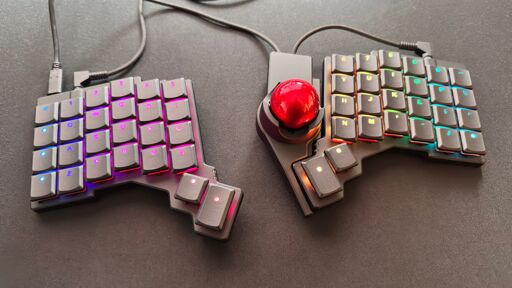
It’s been nearly two years since I reviewed the ZSA Moonlander, and it’s still a keyboard that I rate very highly. Sure, it’s expensive and difficult to get used to, but if you can afford one and commit to its steep learning curve, I reckon it’s one of the very best ergonomic keyboards around. So when ZSA offered to send over its Voyager keyboard, along with its new Navigator trackball module, I had high expectations.
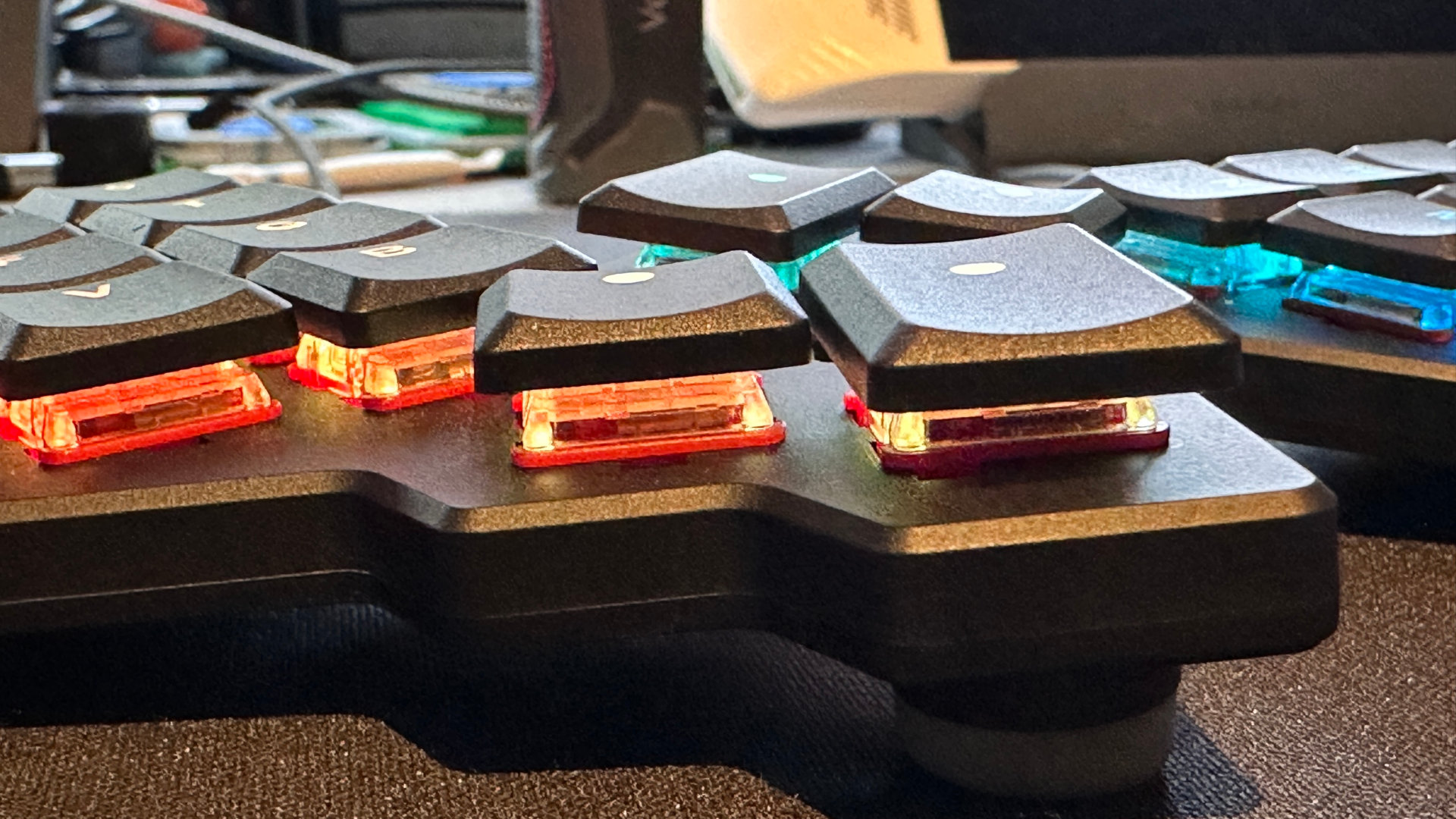
Essentially, the Voyager is a pared-down Moonlander, with all excess fat trimmed away to leave as minimal a keyboard as possible. “Laptop-friendly,” says ZSA’s marketing. “Goes anywhere—on your desk or on the road.” I certainly can’t argue with that because with just 52 keys and a total thickness of just 16 mm (0.62 inches), the Voyager is as whisper-thin as you could want.
However, both the thickness and key count result in some notable compromises. For example, there’s no wireless connectivity option because batteries would add to the weight, cost, and size of the keyboard. With such few keys, you have to make full use of the Voyager’s layer system to access standard options such as function keys.
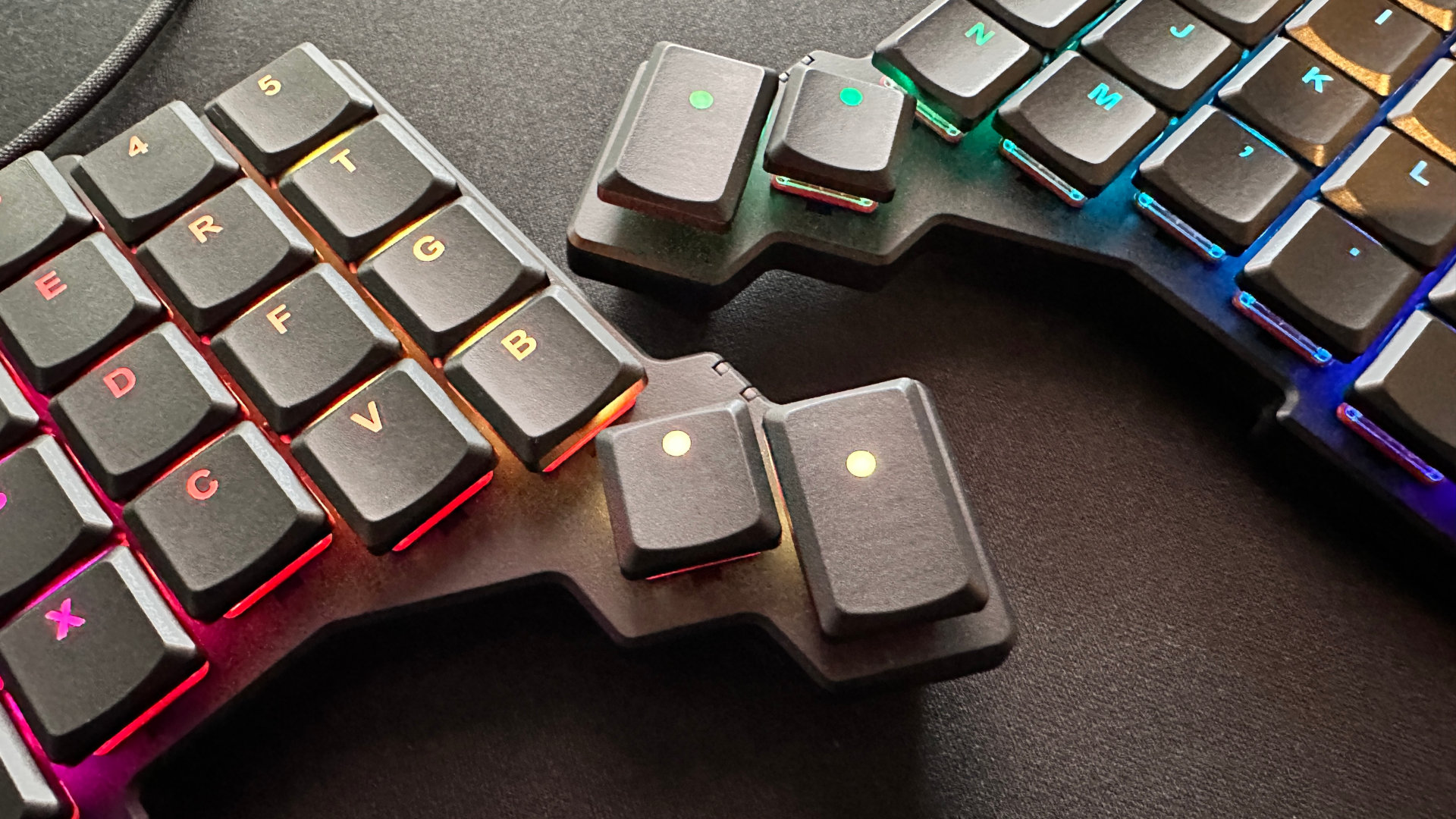
On the plus side, the ZSA Voyager comes with multiple USB cables of different lengths, though only one long TRRS cable to connect the two keyboard halves. You also get an additional 34 keycaps in the box, plus two more thumb keys, should the original ones break. That does mean you can heavily customise the Voyager without having to spend any more money, and the soft carry case it all comes in is a nice touch.
(Image credit: Future)
ZSA Voyager specs
(Image credit: Future)
Switches: Kailh Choc Brown, Pro Red, Red, or WhiteConnectivity: wired (USB Type-A)Keys: 52 in totalSplit: fully separate halvesTenting: 0 or 5 degrees, via magnetic feetTilting: noneBacklighting: per-key RGBMedia controls: programmable shortcut keysPrice: $365
While the Moonlander sports legs to continuously adjust the amount of tenting, the Voyager just uses four small feet that magnetically attach (there’s a metal bar in the carry case, so you can snap the little stumps onto that when they’re not required). That means you only get one level of tenting—around five degrees—but the overall shape of the Voyager means that anything higher than this would make it somewhat unstable.
It would also ruin the extremely low profile of the keyboard, and given that this is a major selling point of the Voyager, it’s easy to see why ZSA kept tenting options to a minimum.
After a couple of weeks of training my brain to adapt to the columnar arrangement of the keys, not to mention the relative dearth of them, I explored how viable the Voyager is for being an all-in-one keyboard: i.e. for work and gaming. While I suspect some users will have no issues, I struggled with the Voyager in games, even after spending a good amount of time experimenting with different layouts and configurations.
The problem is simple: there just are not enough keys. You can make a game-specific profile in ZSA’s excellent Oryx software (more on this shortly) and have all the keys you require in just the right place, but I couldn’t make a profile suitable enough to be used across a wide range of game genres. What worked for Battlefield 6 was an unusable mess for Hearts of Iron 4, for example.
For straight typing, though, the Voyager is a delight to use. My review sample came with Kailh Choc White switches, which feel responsive and nicely damped, and not too clicky either. Every switch is hot-swappable, so you can always replace them with something with more or less resistance and feedback.
Image 1 of 3

(Image credit: Future)
Image 2 of 3

(Image credit: Future)
Image 3 of 3

(Image credit: Future)
One thing I wanted to change immediately, though, was the cables. The main USB Type-C doesn’t fit really snugly in the left section, and the TRRS (tip-ring-ring-sleeve) cable for connecting the two halves is quite stiff and unwieldy. For much of my time testing the ZSA Voyager, I used my own set of soft braided cables.
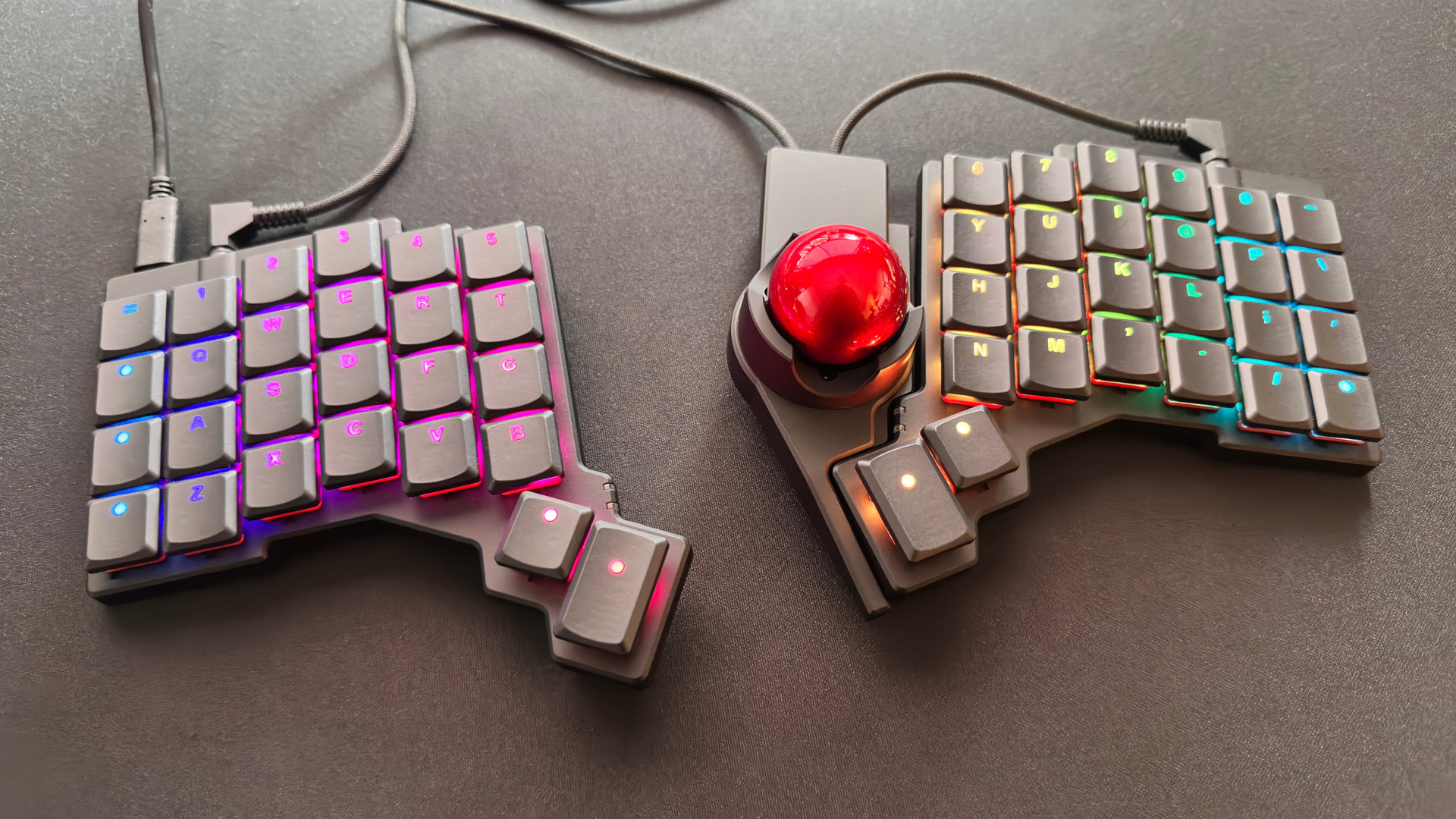
I mention these specifically because that’s what ZSA ships with its Navigator module for the Voyager. This is a trackball housing that magnetically snaps to the inside edge of one half of the keyboard (you can order it for the right or left half), and it connects to the system via two TRRS cables.
Image 1 of 3

(Image credit: Future)
Image 2 of 3

(Image credit: Future)
Image 3 of 3
(Image credit: Future)
The design of the Navigator doesn’t quite gel with that of the Voyager. Certain edges don’t line up very well, and compared to the overall build quality of the keyboard, the trackball module feels somewhat cheap. At $169, though, it’s anything but cheap, and I have to say that I felt quite disappointed with it.
You can’t just snap on the module and start rolling the ball, either. It needs to be added via ZSA’s the Oryx software, and while that process is relatively straightforward and only needs to be done once, it felt like I was experimenting with a crowd-funded project rather than a professional piece of equipment.
You’ll also note that the module has no keys of its own, so in order to carry out ‘mouse clicks’, you have to press keys on the opposing keyboard half as you move the ball around (or just after you rolled the ball).
Image 1 of 4

(Image credit: ZSA)
Image 2 of 4

(Image credit: ZSA)
Image 3 of 4

(Image credit: ZSA)
Image 4 of 4

(Image credit: ZSA)
Buy if…
✅ You want to maximise your desk space: The ZSA Voyager is a supremely minimalist ergonomic keyboard that is so slim and compact, you’ll barely notice its presence.
Don’t buy if…
❌ You want to make compromises for work and gaming: With just 52 keys, the Voyager relies heavily on using multiple layers to provide full functionality, which can be particularly awkward to deal with in games.
Despite my best efforts, it’s something I couldn’t get to grips with, though other users may find it intuitive and simple. ZSA is planning on bringing a trackpad module to the Voyager, and I suspect that will suit me far better.
All things considered, there’s an awful lot to like about the ZSA Voyager. It really is wonderful to use from a straight typing perspective, and even though it’s very pricey at $365, you do get a lot of extras in the whole package.
I don’t think I could live with the Voyager as my sole keyboard for work and gaming, however, and I deposited the Navigator back into its carry case the moment I finished testing it. But if I were a space-conscious, minimalist coder, I’d give the ZSA Voyager a serious look.
For me, though, I don’t want to live with compromises, so my money would go on the Moonlander. It costs exactly the same as the Voyager, and its 20 extra keys make it far better for gaming.
From PCGamer latest via this RSS feed